
1
Upload your image
Choose a JPEG, PNG, or similar still with visible grain or high-ISO noise.
Clean grain, high-ISO noise, and soft artifacts from photos with AI image denoise. Keep edges and texture while you remove noise online on Goglo.
Denoise consumes 15 credits per submitted task. Opening the tool and inspecting examples does not process a new photo. Available trial credits depend on your account.
Existing tool outputs, shown at the same scale. Results vary with the source photo.
 Before
 AfterBeforeAfter
Both views show the same central crop. Check edges, fine texture and remaining grain.
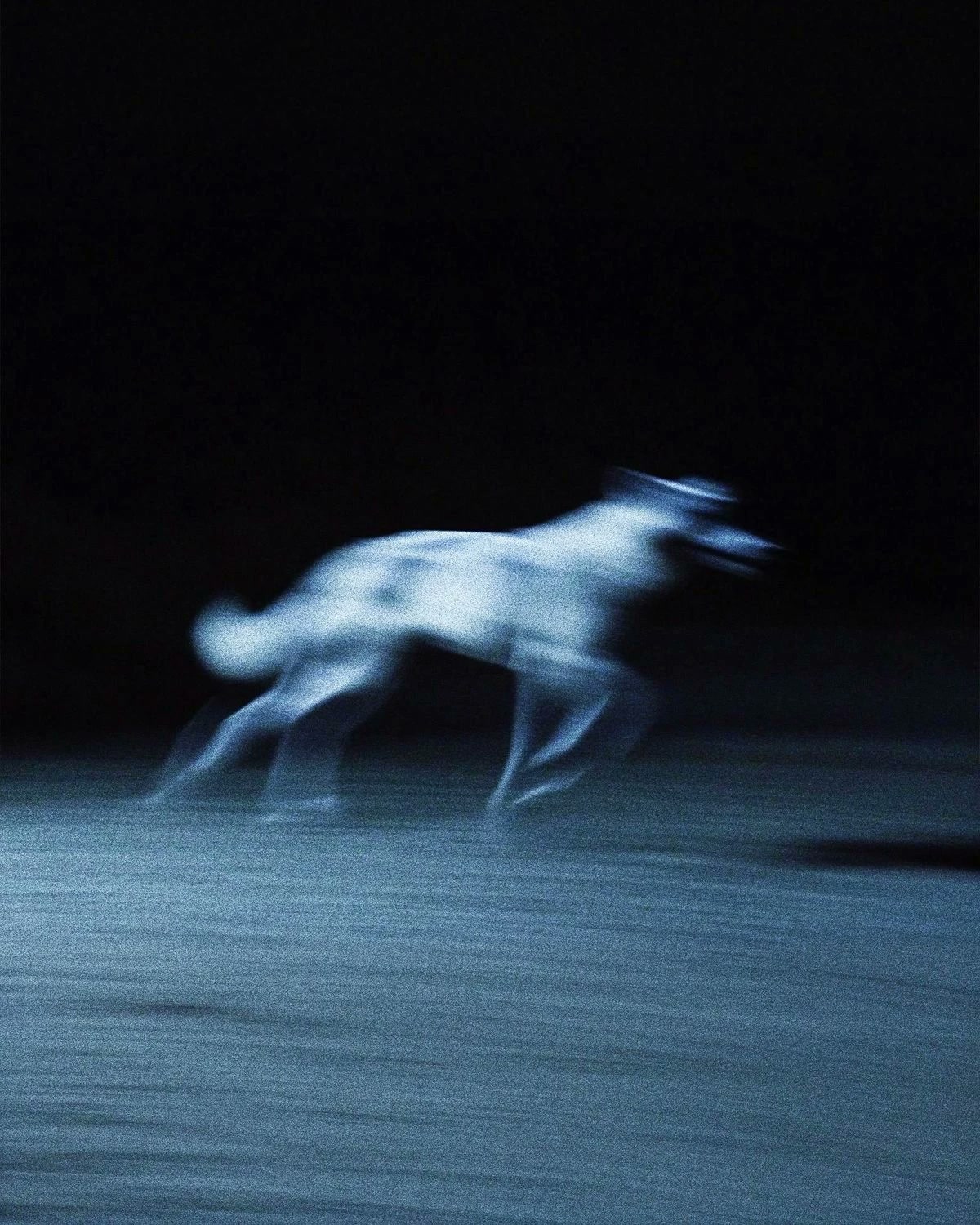 Before
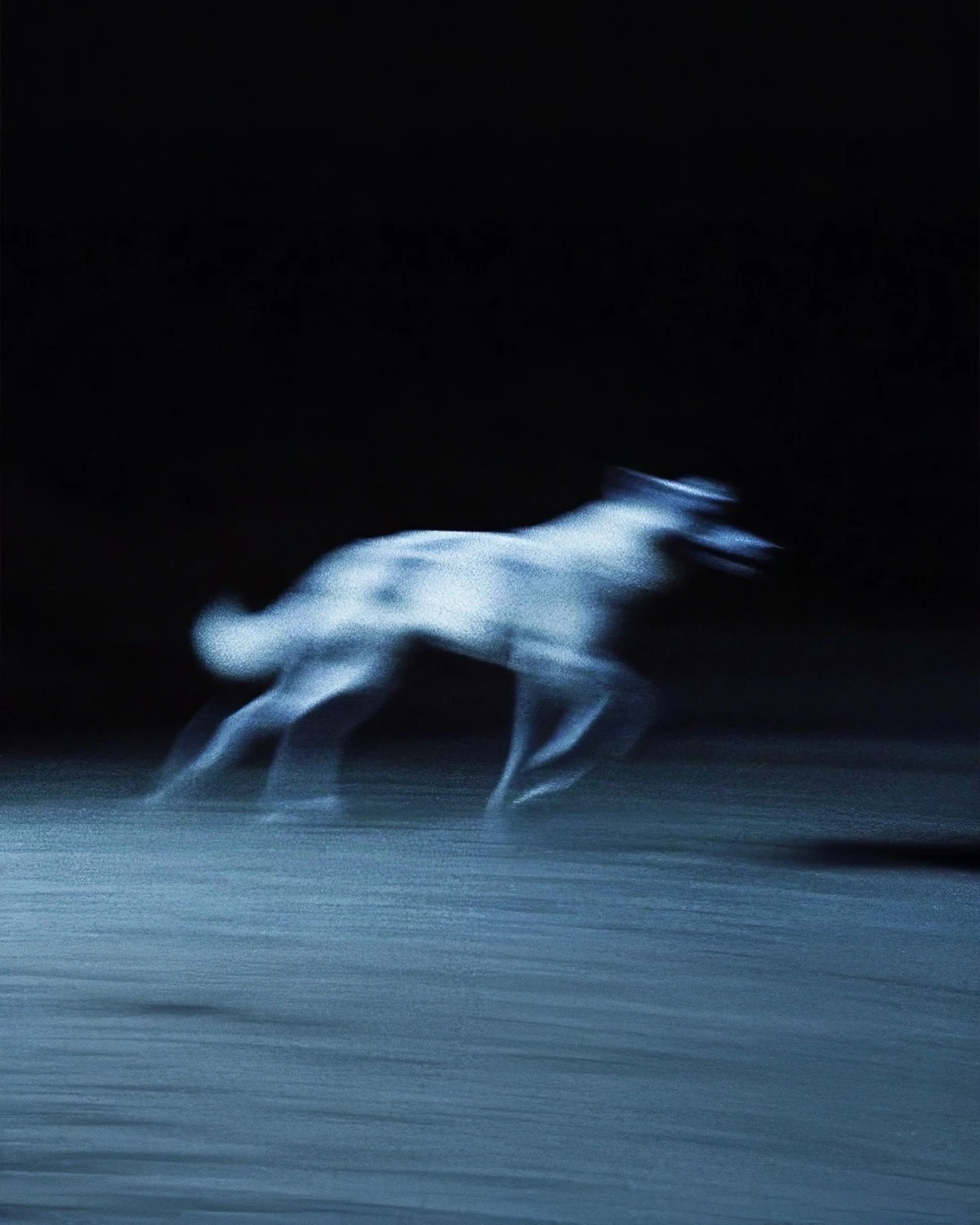 AfterBeforeAfter
Both views show the same central crop. Check edges, fine texture and remaining grain.
Compare matching parts of the source and output before judging the whole photo. Skin, fabric, small lettering and thin edges can become smoother along with noise. Start with Normal, inspect the result, and try Strong or Extreme only if remaining grain matters more than the texture at risk. A larger preview does not create extra detail: the paired crops here enlarge the same central region on both sides. Keep the original so you can return to it if you prefer its texture. Denoise does not replace a new exposure when motion blur or missing detail is the main problem.
Three steps to remove noise from a photo online.
Choose a JPEG, PNG, or similar still with visible grain or high-ISO noise.
Goglo processes the photo to reduce noise while trying to hold detail and color.
Preview the AI image denoise output, then save it for edit or publish.
Practical AI image denoise for noisy stills.
Targets grain and sensor noise rather than wiping all micro-contrast.
Aims to keep hair, fabric, and edges while you remove noise from the photo.
Image denoise online without installing a desktop stack.
Useful on night scenes and indoor ISO-heavy frames.
Upload → denoise AI → download. No complex node graphs.
Same Goglo account as other AI image tools when your workflow continues after denoise.
Typical jobs for photo noise reduction.
Soften aggressive grain after dark street or event shots.
Reduce chroma noise before retouching or background work.
Calm film grain or scanner noise on older photos before restore steps.
Check the actual workflow before preparing a set of photos.
Denoise consumes 15 credits per submitted task. Opening the tool and inspecting examples does not process a new photo. Available trial credits depend on your account.
This page processes one image per task. Repeat the workflow for additional photos; there is no batch uploader on this page.
The public API catalog does not currently list image denoise. A paid plan does not establish API availability for this tool.
Common questions about image denoise online on Goglo.
AI image denoise removes grain and sensor noise from a photo while trying to keep useful detail and edges.
Processing costs 15 credits per task. Check your account balance and pricing; free or unlimited processing is not promised.
The goal is noise reduction without heavy blur. Extremely noisy inputs may still look softer after cleanup.
High-ISO, low-light, and slightly grainy stills. Already soft images gain less from AI image denoise.
Start with Normal and inspect a detail crop. Strong and Extreme may remove more noise but can also soften skin, fabric and fine edges.
Yes, but results vary. Photos with natural grain usually benefit more than flat UI screenshots.
Most stills finish quickly depending on size and queue load.
Uploads are for your denoise job. Follow Goglo privacy and content rules.
Depends on your plan and rights to the original photo. Check terms and pricing.
Upload and process an image in the tool at the top of this page. You can also use the image denoise workspace.
It targets noise and grain more than motion blur. Use enhance or sharpen tools for blur-heavy shots.
The current interface handles one photo per task. Batch processing and a public denoise API are not available through this page.
Open the tool, upload a noisy image, and download a cleaner result on Goglo.